
Using BrokerMule on your phone
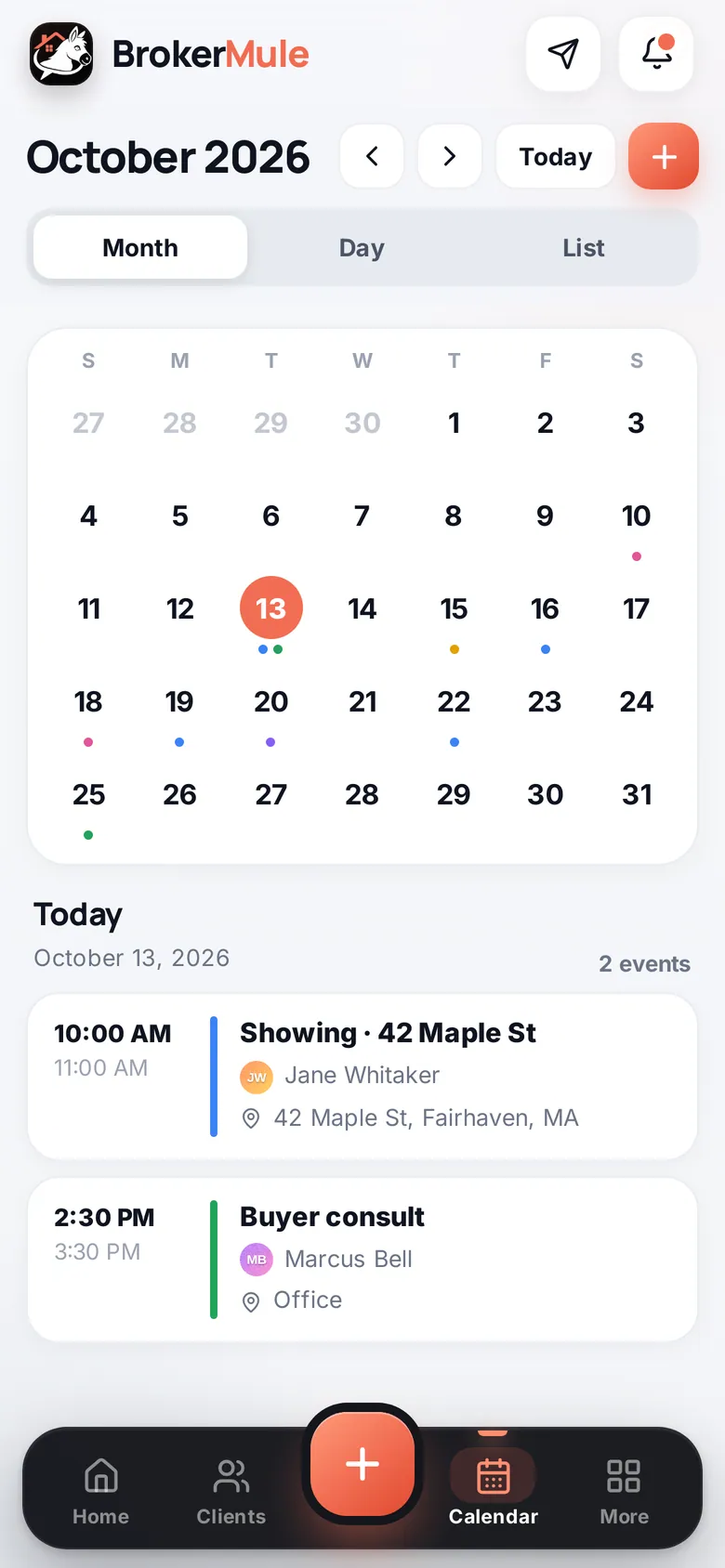
The app-style phone layout: bottom bar, quick add, the More menu, client pages and the calendar.
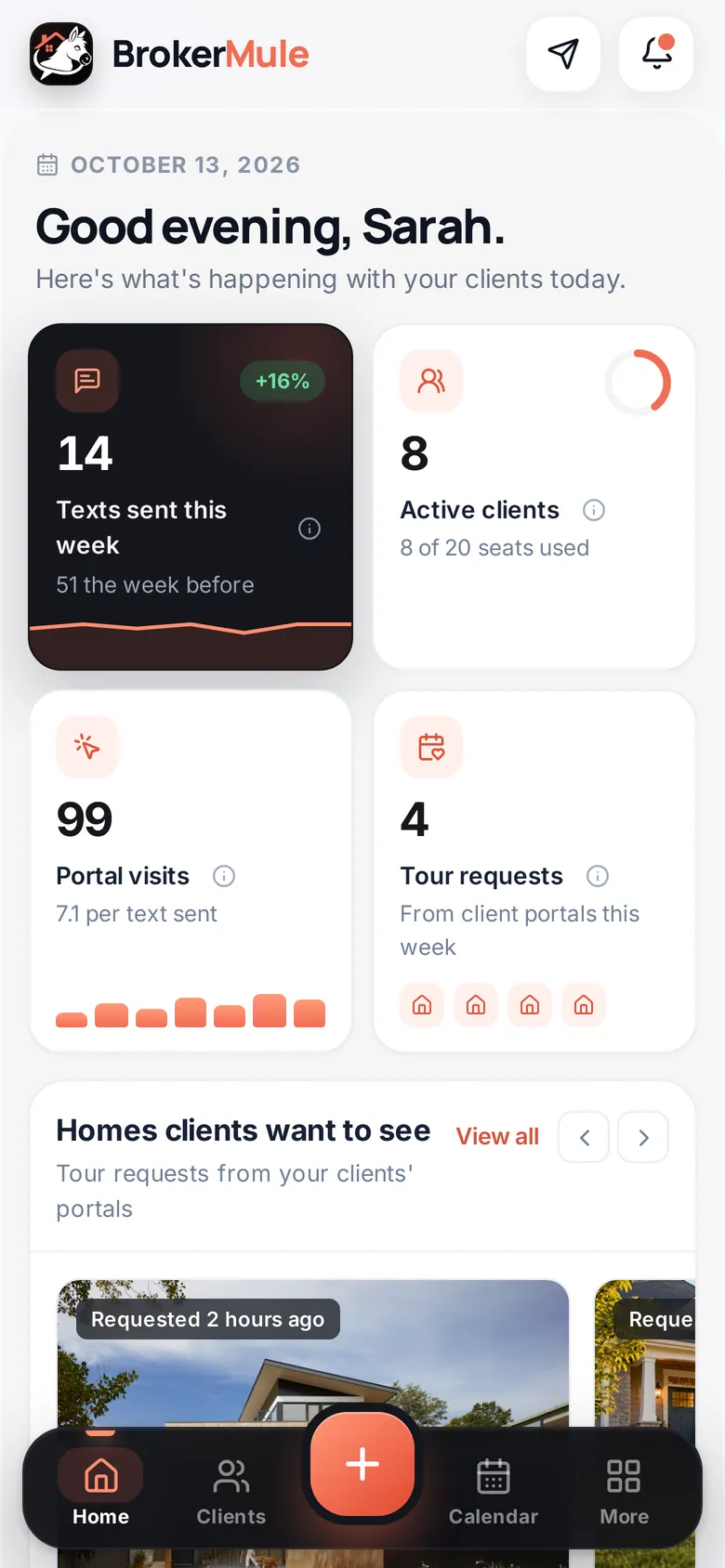
You don't need to download anything. Open BrokerMule in your phone's browser and it switches to an app-style layout built for one hand. Everything is the same account as on your computer, so a client you add at an open house is on your laptop when you get back to the office.
Add BrokerMule to your home screen
For one-tap access, save BrokerMule to your home screen like an app:
- iPhone (Safari): open brokermule.com, sign in, tap the Share button, then Add to Home Screen.
- Android (Chrome): open brokermule.com, sign in, tap the ⋮ menu, then Add to Home screen (or Install app).
The icon opens straight to your dashboard, and you stay signed in.
The top bar
- Logo – tap to go home.
- Paper plane – opens your invite link so you can share it on the spot.
- Bell – opens Notifications. A dot means something new.
The bottom bar
- Home – your dashboard, in one column ordered by what needs action first.
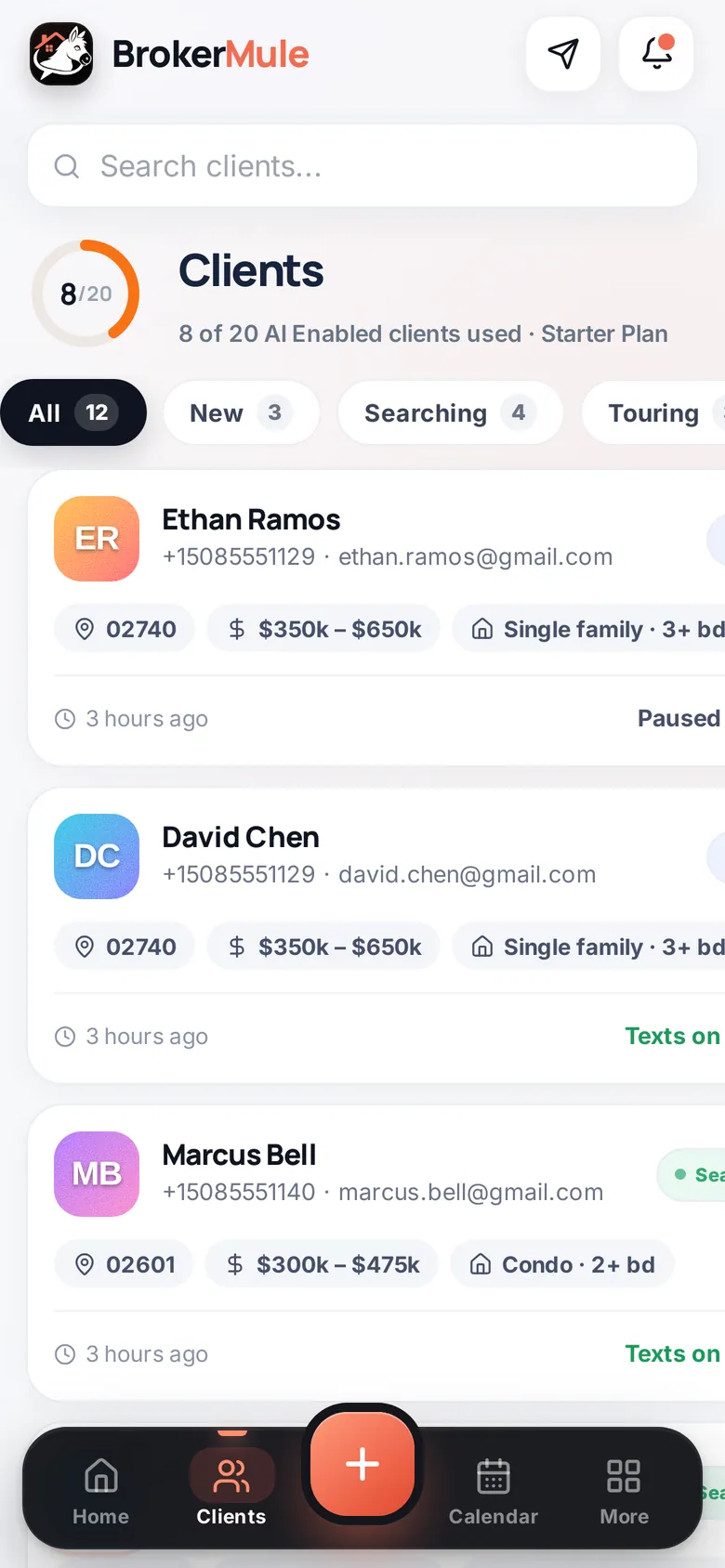
- Clients – your client list with stage chips across the top. A glowing ring around an avatar means that buyer sent something you haven't read.
- + – add a client in one tap.
- Calendar – a phone-style calendar with month, day and list views.
- More – everything else.
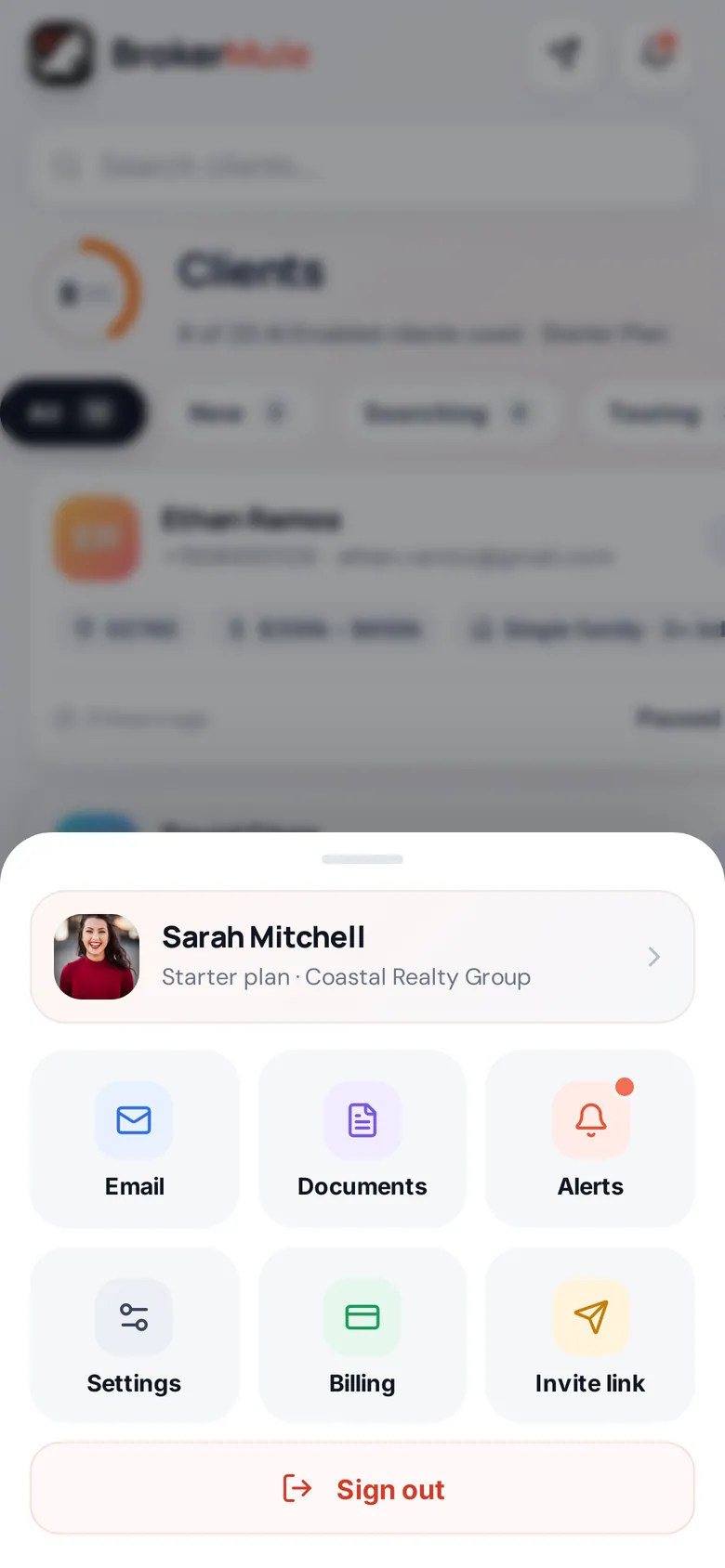
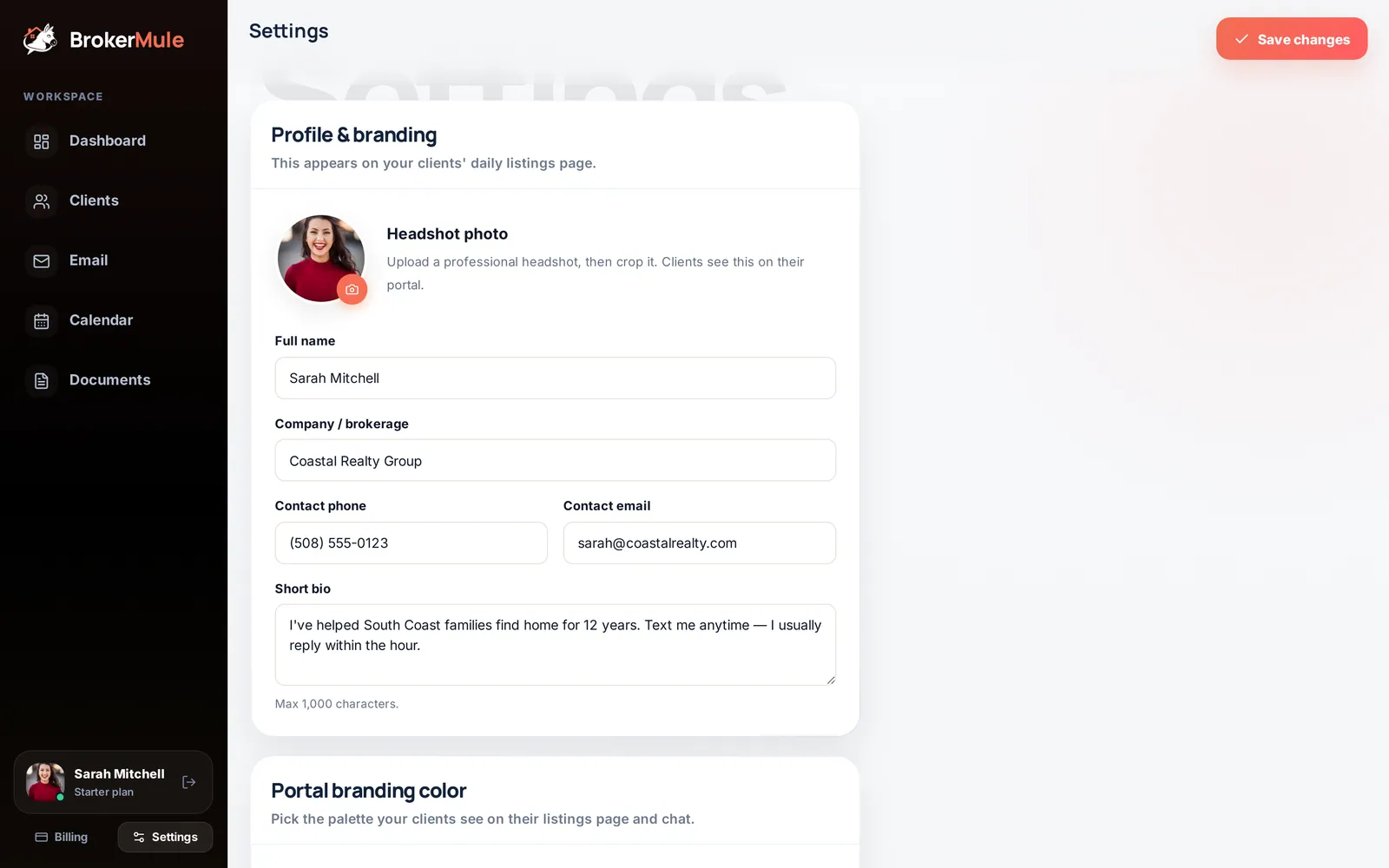
The More menu has your profile and plan, plus Email, Documents, Alerts, Settings, Billing, Invite link and Sign out.
Client pages on a phone
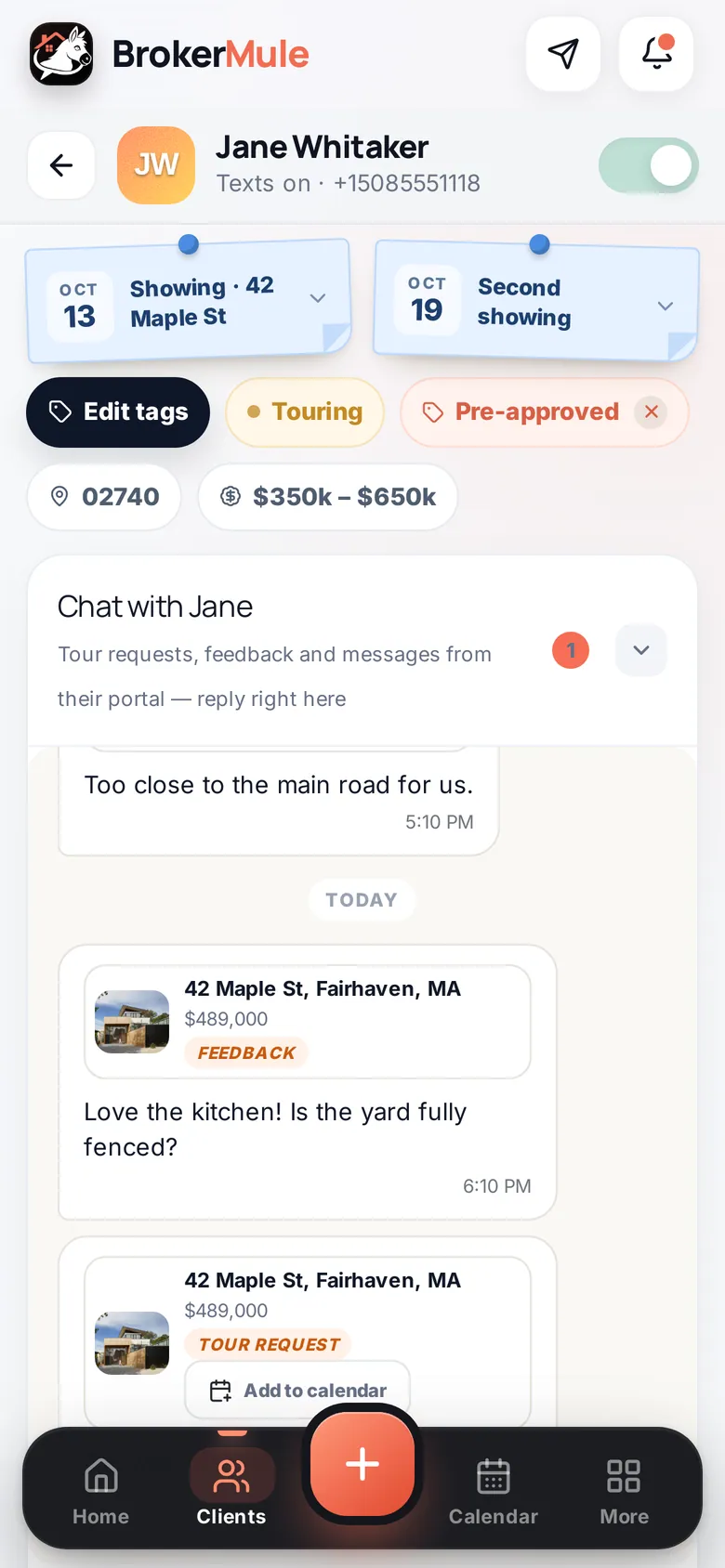
Client pages get a sticky header with a back button, the client's name and their texting switch. Sections are collapsed except Chat, so you can reply to a buyer standing at a showing without scrolling past forms. Tap any section title to open it; BrokerMule remembers your choices.
The calendar on a phone
Swipe left and right to change months. Dots show busy days, and the selected day's events are listed underneath. Switch to Day for an hourly timeline or List for everything coming up.
Real-world ways agents use it
- At an open house. Tap the paper plane and show visitors your invite link, or tap + and add them yourself while you're talking. Tick the consent box only if they agreed to texts.
- Between showings. Open Clients, look for the glowing rings, and answer chat messages and feedback in a few taps.
- When a buyer asks for a tour. Open the tour request from the bell, then add the showing on the Calendar with the client linked.
- First thing in the morning. Open Home to see which texts went out, who opened them and who replied, before you even get to your desk.
Phone or computer?
Use your phone for quick replies, adding clients and checking your day. Bigger jobs are easier on a computer: designing email campaigns, editing documents and reorganizing your pipeline. Everything you do on one shows up on the other.
Frequently asked questions
Is there a BrokerMule app?
BrokerMule works in your phone’s browser with an app-style layout, so there’s nothing to install. You can add it to your home screen for one-tap access.
Can I add clients from my phone?
Yes. Tap the orange + in the middle of the bottom bar.
Does it work on both iPhone and Android?
Yes. Any modern phone browser works, including Safari on iPhone and Chrome on Android.
Will my phone and computer stay in sync?
Yes. It’s the same account, so clients, chats, events and documents are the same on every device.
Related guides
From the blog
All articles Lead follow-upSpeed to Lead in Real Estate: Why the First Hour Decides Who Wins the Buyer
What the research says about lead response time, and how a solo agent can answer every lead within minutes.
 CRM & textingBest Real Estate CRM for Solo Agents in 2026: What Actually Matters
Solo agents pay for complexity twice — in fees and in setup time. Five criteria that actually predict whether you will use a CRM, plus a shortlist by use case and price.